
WordPress Login Redirect Loop After Successful Login (wp-admin Redirects Back)
Exact Problem
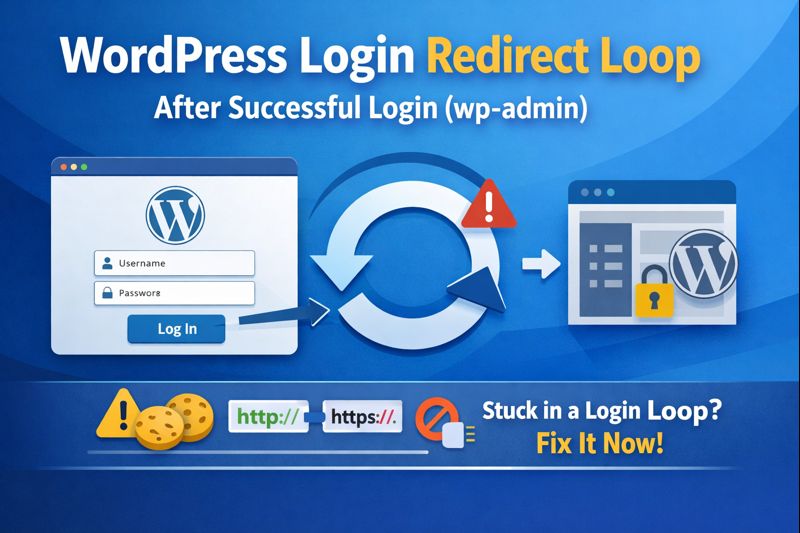
A WordPress login redirect loop occurs when your username and password are accepted, but instead of opening the admin dashboard, WordPress sends you back to the login page. This repeats endlessly and prevents access to /wp-admin/ .
This guide applies only when authentication succeeds but the redirect after login fails.
If you are seeing a password error, this guide does not apply.
After entering correct login credentials:
- The login form accepts the username and password
- No “incorrect password” or “invalid username” error is shown
- The browser redirects back to the login page instead of
/wp-admin/ - This loop repeats indefinitely
- The site’s front end continues to load normally, but administrator access is blocked
Platform
WordPress (self-hosted)
Transparency Note
This guide follows standard WordPress core login behavior.
WordPress authentication is handled in two distinct phases:
- Credential verification
- Session creation and redirect to
/wp-admin/
When credentials are accepted but session confirmation fails, WordPress intentionally redirects back to the login page for security reasons.
No assumptions are made about hosting providers, themes, or plugins unless explicitly tested by disabling them.
Short Explanation
After a successful login, WordPress creates authentication cookies in your browser and redirects you to the admin dashboard.
If cookies cannot be stored, or if URL or redirect rules conflict, WordPress cannot confirm the login session and redirect back to the login page.
Table of Contents
- Why the WordPress Login Redirect Loop Occurs
- Quick Check Before Fixing Anything
- How to Fix WordPress Login Redirect Loop (Basic Fixes)
- Advanced Fixes (Use Only If Basic Fixes Fail)
- If the Issue Still Persists
- What Not to Do
- How to Prevent This Issue
- Frequently Asked Questions
- Summary
- Related Guides
Why the WordPress Login Redirect Loop Occurs
When you click Log In, WordPress:
- Verifies your username and password
- Creates login session cookies in the browser
- Redirects the browser to
/wp-admin/
If WordPress cannot store the session cookies or complete the redirect, it cannot confirm the login session and repeats the login request.
This behavior is consistent with WordPress core authentication handling, which relies on browser cookies to validate logged-in sessions (WordPress official documentation).
This issue is usually caused by:
- WordPress Address and Site Address not matching exactly
- Browser cookies being blocked or corrupted
- HTTP and HTTPS being mixed during login
- A plugin interfering with post-login redirects
- Redirect rules forcing the browser back to the login page
Quick Check Before Fixing Anything
| What You See | What It Means |
|---|---|
| Login page reloads without an error | Authentication worked, redirect failed |
| Front-end loads normally | Issue is limited to admin login |
| “Cookies are blocked” message | Browser cannot store login cookies |
| Login works in private/incognito mode | Browser cookies are corrupted |
If these match your situation, continue with the steps below.
How to Fix WordPress Login Redirect Loop (Basic Fixes)
Follow the steps in order.
Stop immediately once login works.
Step 1 – Clear Browser Cookies for Your Site (Detailed)
Cookies are required for WordPress login sessions.
- Open your browser settings
- Go to Privacy / Security
- Choose Cookies and site data
- Either:
- Remove cookies only for your website, or
- Clear all cookies if you are unsure
- Close all browser windows
- Reopen the browser
- Go directly to
https://yourdomain.com/wp-login.php - Log in again
If login works now, the issue was corrupted cookies.
Note: If login works in Incognito / Private mode, the issue is confirmed to be local browser cookies stored in the normal browsing session.
Step 2 – Force Correct Site URLs in wp-config.php (Exact Method)
Mismatched URLs are the most common cause of redirect loops.
- Log in to your hosting control panel
- Open File Manager or connect using FTP
- Open the root folder of your WordPress site
- Locate the file named
wp-config.php - Open it for editing
- Find the line that says:
/* That's all, stop editing! Happy publishing. */ - Above that line, add:
define('WP_HOME', 'https://yourdomain.com');
define('WP_SITEURL', 'https://yourdomain.com');- Replace
https://yourdomain.comwith your exact site URL - Use https if your site has SSL
- Use http only if SSL is not installed
- Match www vs non-www exactly
- Save the file
- Try logging in again
Note: After adding these lines, the Site Address fields in Settings → General may appear disabled. This is expected behavior and does not indicate an error.
wp-config.php for WordPress login redirect issues.Step 3 – Confirm HTTP vs HTTPS Consistency
Mixed protocols cause login redirects.
- Visit your homepage in a new tab
- Check the browser address bar:
- Does it start with http:// or https://?
- Confirm the URLs you added in wp-config.php use the same protocol
- Do not add redirect rules yet
- Test login again
If the protocol matches and login works, stop here.
Step 4 – Disable All Plugins Using File Manager or FTP
Plugins can block or redirect login sessions.
- Open your site files via File Manager or FTP
- Go to
/wp-content/ - Rename the folder named plugins to:
plugins-disabled - This disables all plugins at once
- Visit
/wp-login.php - Try logging in
If login works:
- Rename the folder back to plugins
- Activate plugins one at a time
- Test login after each activation to find the cause
Advanced Fixes (Use Only If Basic Fixes Fail)
Proceed only if login still redirects after all steps above.
Step 5 – Reset Redirect Rules Safely (.htaccess)
Broken redirect rules can trap login requests.
- Open your site root folder
- Locate the file named
.htaccess - Rename it to
.htaccess_backup - Try logging in again
If login works:
- Go to Settings → Permalinks
- Click Save Changes
- WordPress generates a clean
.htaccessfile
Step 6 – Reset Authentication Keys (Session Reset)
Corrupted keys can invalidate login cookies.
- Open
wp-config.php - Find the section containing:
-
AUTH_KEY -
SECURE_AUTH_KEY -
LOGGED_IN_KEY -
NONCE_KEY
Replace all of them with fresh keys from the official WordPress salt generator
- Save the file
- Log in again (all sessions are reset)
If the Issue Still Persists
If login still redirects after all steps above, the issue is likely server-level.
Ask your hosting provider to:
- Disable forced redirects temporarily
- Clear server-side cache
- Check for login URL rewrite rules
Before making further changes, also verify the following:
Disk space: If your hosting disk is full, WordPress may be unable to write session data, which can cause login loops. Check your hosting dashboard for available disk space.
If this issue started immediately after a failed WordPress update, the site may also be affected by a stuck maintenance state. In that case, follow the recovery steps in these separate guides:
- WordPress Stuck in Maintenance Mode After Update
- Advanced Fixes for WordPress Stuck in Maintenance Mode
Avoid making further changes until the redirect source is identified.
What Not to Do
- Do not refresh the login page repeatedly
- Do not edit core WordPress files
- Do not apply multiple fixes at the same time
- Do not install new security plugins during troubleshooting
- Do not change the PHP version while troubleshooting, as this introduces new variables.
How to Prevent This Issue
- Keep WordPress Address and Site Address identical
- Test login after domain or SSL changes
- Limit plugins that modify login or redirects
- Back up wp-config.php and .htaccess before editing
Frequently Asked Questions
Does this mean my WordPress admin password is wrong?
No. The WordPress credentials are accepted successfully. The issue occurs after login when the redirect to the admin dashboard fails.
Can visitors still access the WordPress site during a login redirect loop?
Yes. This WordPress login redirect loop usually affects only admin access. The site front end continues to load normally for visitors.
Is the WordPress login redirect loop caused by cookies?
Often, yes. Blocked or corrupted browser cookies can prevent WordPress from confirming the login session and cause repeated redirects.
Can SSL or HTTPS issues cause a WordPress login redirect loop?
Yes. Mixed HTTP and HTTPS URLs or incorrect WordPress site URLs are common causes of wp-admin redirect problems.
Is this WordPress login issue related to maintenance mode?
No. Maintenance mode displays a different message. A login redirect loop occurs after successful authentication, not during updates.
Summary
This issue occurs when WordPress authenticates successfully but cannot complete the redirect.
URL mismatches, cookies, plugins, and redirect rules are the main causes
Apply fixes one at a time and stop once login works
Related Guides
Written by TechHelpTips Editorial Team
We publish clear, step-by-step guides for common website and WordPress issues, focusing on safe, non-destructive fixes that help restore normal site functionality without unnecessary changes.