
Fatal Error: Allowed Memory Size Exhausted in WordPress (How to Fix Safely)
⚠️ Exact error
Fatal error: Allowed memory size of XXXXX bytes exhausted (tried to allocate XXXXX bytes)
🖥️ Platform
WordPress (self-hosted)
🧭 Introduction
This fatal error appears when WordPress attempts to use more memory than PHP is allowed to provide. When the limit is reached, PHP immediately stops execution, and the page fails to load.
The error often appears after installing a plugin, activating a theme, importing content, or running an update. The site’s data is usually not lost, but WordPress cannot continue processing the request until the memory issue is resolved.
📚 Table of Contents
- Quick cause summary
- Why this happens
- Step-by-step safe fixes
- What NOT to do
- Factual summary
- Related guides
- FAQ
📌 Quick cause summary
WordPress shows this error when PHP reaches its memory limit while handling a request.
This typically happens when a plugin or theme needs more memory than the server allows,
or when the hosting environment enforces a low PHP memory cap.
❓ Why this happens
When a WordPress page loads, PHP must:
- Load WordPress core files
- Load all active plugins
- Load the active theme
- Process database queries
Each step consumes memory.
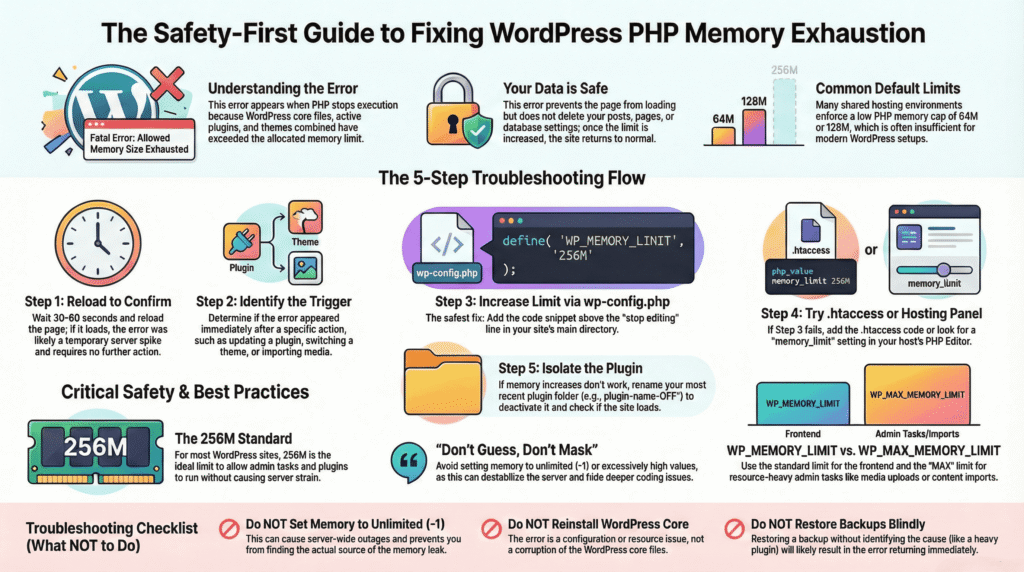
If the combined usage exceeds the allowed PHP memory limit (often 64M or 128M on shared hosting),
PHP stops execution and throws this fatal error.
This does not mean WordPress is broken.
It means PHP prevented the process from continuing to avoid server instability.
🔧 Step-by-step safe fixes
(Start at Step 1 and stop as soon as the error disappears.)
Step 1: Reload once to confirm it is not temporary
Before changing anything:
- Reload the page once.
- Wait 30–60 seconds and try again.
If the site loads normally, the error was likely caused by a temporary server spike.
Risk: None
Step 2: Identify when the error started
This error almost always appears after a specific action. Think back:
- Did you install or update a plugin?
- Did you switch or update a theme?
- Did you import content or media?
If the error appeared immediately after one of these actions,
memory usage likely increased at that point.
Risk: None
Step 3: Increase WordPress memory limit (Method A — wp-config.php)
This is the most common and safest fix.
You will need access to your hosting File Manager or FTP.
What to do carefully:
- Open your hosting control panel.
- Navigate to your site’s main directory (commonly public_html).
- Locate the file named wp-config.php.
- Download a backup copy before editing.
- Open the file and find the line:
/* That's all, stop editing! Happy publishing. */
- Add the following line above it:
define( 'WP_MEMORY_LIMIT', '256M' );
- Save the file and reload your site.
If the error appears inside the admin dashboard (during imports, updates, or uploads),
you may also add:
define( 'WP_MAX_MEMORY_LIMIT', '256M' );
Each line must be on its own line. Even a single extra space or missing quotation mark can prevent WordPress from loading.
If the site loads, stop here.
Risk: Low (standard configuration change)
Important note about hosting limits
WP_MEMORY_LIMIT tells WordPress how much memory it is allowed to use, but the final limit is enforced by the server’s PHP configuration.
If your hosting provider caps PHP memory at a lower value (for example, 128M), WordPress cannot exceed that limit until the host changes it.
This guide uses 256M as a safe starting point because it resolves most memory exhaustion errors without masking deeper issues.
If your hosting provider allows higher PHP memory (such as 512M or 1024M) and the error returns later, you may increase the WordPress memory limit gradually (for example, to 384M or 512M). Increasing memory beyond what resolves the error is usually unnecessary and may hide inefficient plugins or themes.
For additional context, see the official WordPress documentation on wp-config.php.
Step 4A: Increase memory using .htaccess (Method B)
Only try this step if Step 3 did not resolve the issue.
Some hosting environments ignore memory rules in wp-config.php.
What to do:
- Locate the
.htaccessfile in your site’s main directory. - Edit the file and add this line at the very bottom:
php_value memory_limit 256M
Save the file and reload your site.
If a 500 Internal Server Error appears, remove the line immediately.
This indicates your host does not allow this method.
Risk: Low (single-line change, fully reversible)
Step 4B: Increase memory via hosting settings or php.ini (optional)
Some hosting providers manage PHP memory limits through their control panel or a php.ini file instead of .htaccess or wp-config.php.
This step helps you check the current PHP memory limit first, then adjust it only if needed.
Where to look in your hosting panel
After logging in to your hosting control panel, look for sections such as:
- PHP Settings
- Select PHP Version
- PHP Configuration
- php.ini Editor
The exact location varies by host, but it is usually under an Advanced, Software, or Server section.
How to check the current PHP memory limit
Inside the PHP settings or configuration screen, look for a setting named:
memory_limit
You may see a value such as:
128M256M512M1024M
This value represents the maximum memory PHP is allowed to use, regardless of what WordPress requests.
How to update the setting (only if required)
If the current PHP memory limit is lower than 256M and your host allows editing it:
- Change
memory_limitto256M - Save or apply the changes
- Reload your website
If the site loads normally, stop here.
If your host already allows 256M or more, no change is needed at this level.
Important safety notes
- Do not guess setting names or create new configuration files unless your host explicitly instructs you to do so.
- Do not set extreme values unless required; higher limits do not improve performance.
- Incorrect changes to PHP settings can cause server errors or blank pages.
If you cannot find this setting or are unsure what to change, leave it unchanged.
Risk: Low (host-managed and fully reversible)
Step 5: Disable the last plugin if the error remains
If increasing memory does not resolve the issue, a plugin may be consuming excessive memory.
What to do:
- Open /wp-content/plugins/ using File Manager or FTP.
- Locate the plugin added or updated most recently.
- Rename its folder (for example: plugin-name-OFF).
- Reload the site.
If the site loads, that plugin is the cause and should be removed or replaced.
Risk: Low (no data deletion)
🚫 What NOT to do
- Do not set memory to
-1(unlimited). - Do not increase memory excessively to mask deeper issues.
- Do not reinstall WordPress core files.
- Do not restore backups blindly without identifying the cause.
These actions can create new problems or make recovery harder.
📄 Factual summary
The “Allowed memory size exhausted” fatal error occurs when WordPress exceeds PHP’s memory limit. In many cases, increasing the limit to 256M resolves the issue safely.
If the error persists, it usually indicates a plugin or theme using excessive memory rather than a simple configuration issue.
Safe troubleshooting starts with confirmation checks, proceeds through controlled configuration changes,
and escalates only when necessary.
🔗 Related guides
If the site still fails to load after resolving the memory limit, these guides cover related WordPress errors that often appear next:
- How to Fix “Error Establishing a Database Connection” in WordPress (Safely)
Covers database connection failures that can occur after crashes or resource exhaustion. - There Has Been a Critical Error on Your Website — What It Means and How to Fix It
Explains the generic critical error screen and the safe steps to identify underlying causes. - Fatal Error: Maximum Execution Time Exceeded in WordPress (7 Safe Fixes)
Explains how PHP execution time limits can stop WordPress tasks even when memory is sufficient.
❓ FAQ
Will increasing the memory limit slow down my website?
No. Increasing the PHP memory limit only allows WordPress to use more memory when needed.
It does not force WordPress to use extra memory all the time.
Is it safe to set the memory limit to 256M?
Yes. For most WordPress sites, 256M is a safe and commonly used limit.
It allows plugins, themes, and admin tasks to run without hitting memory exhaustion.
Why does the error still appear after increasing the memory limit?
If the error continues, the hosting provider may enforce a lower server-level PHP memory limit,
or a specific plugin or theme may be using excessive memory.
Can this error happen even on a new WordPress site?
Yes. It can occur on new sites if a plugin, theme, or import process requires more memory
than the default server limit.
Does this error mean my site data is lost?
No. This error stops execution but does not delete posts, pages, or settings.
Once the memory issue is resolved, the data becomes accessible again.
Should I keep both WP_MEMORY_LIMIT and WP_MAX_MEMORY_LIMIT set?
Yes, if the error occurs during admin tasks like updates or imports.WP_MEMORY_LIMIT applies mainly to the frontend,
while WP_MAX_MEMORY_LIMIT is used for admin operations.
When should I contact my hosting provider?
Contact your host if:
- Increasing memory in WordPress does not work
- The host enforces a lower PHP memory limit
- The error appears repeatedly without plugin or theme changes
Can plugins or themes cause this error?
Yes. A poorly coded or resource-heavy plugin or theme can exhaust available memory,
especially during updates or background processes.
Is setting memory to unlimited (-1) a good idea?
No. Unlimited memory can destabilize the server and cause broader outages.
It hides the real problem instead of fixing it.
Written by TechHelpTips Editorial Team
We publish clear, step-by-step guides for common website and WordPress issues, focusing on safe, non-destructive fixes that help restore normal site functionality without unnecessary changes.