
There Has Been a Critical Error on Your Website in WordPress – What It Means and How to Fix It
Exact error message:
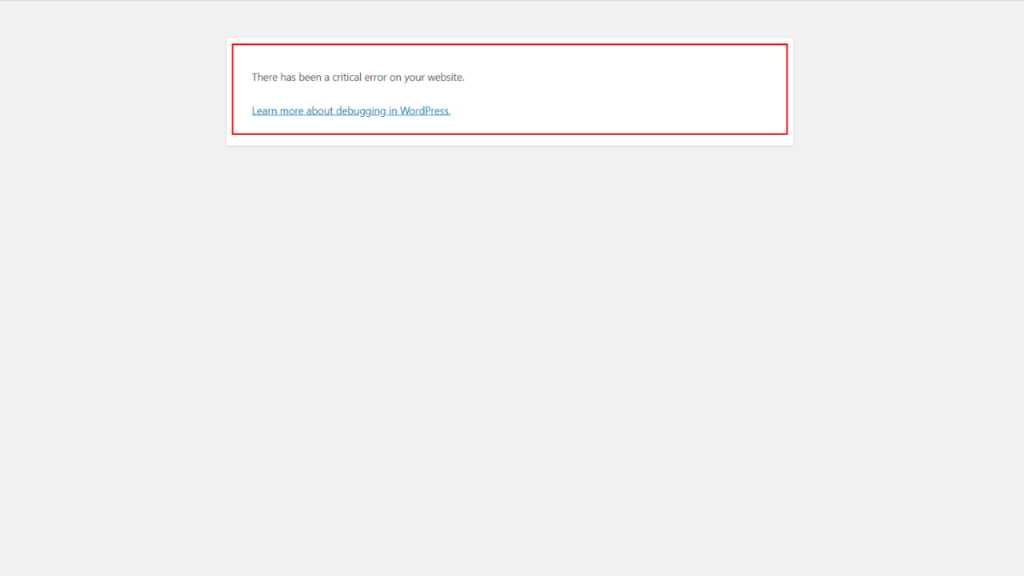
“There has been a critical error on your website.”
When WordPress shows this message, it means a required process failed during execution and WordPress stopped loading the page to prevent further damage.
This guide explains why this happens, what the message actually means, and the safe, reversible steps commonly used to recover the site, including situations where you cannot access the WordPress admin area.
Platform:
WordPress (self-hosted)
📌 Table of Contents
- Quick Cause Summary
- What This Error Actually Means
- Why the Error Appears Suddenly
- Technical Difficulties Email
- Fix the Error If You Can Access wp-admin
- Fix the Error If You Are Locked Out of wp-admin
- Related Symptoms: Login Loops and SSL Issues
- What NOT to Do
- Checking Error Logs
- When You Should Restore a Backup
- How to Reduce the Risk in the Future
- Final Checklist
- Frequently Asked Questions
- Summary
⚡ Quick Cause Summary
This error almost always appears after a recent change, such as:
- Installing or updating a plugin
- Updating a theme
- Updating WordPress core
- Changing PHP or server settings
- Enabling or modifying SSL or CDN configuration
It is not random. The most recent change is usually the trigger.
🔍 What This Error Actually Means
WordPress runs multiple processes every time a page loads.
If one required process fails completely, WordPress stops execution and displays a generic error message instead of technical details.
In practical terms:
- WordPress begins loading the request
- A plugin, theme, or configuration causes a fatal execution failure
- WordPress stops immediately
- A simplified error message is shown
- The technical error details are hidden by default for security reasons
⏱️ Why the Error Appears Suddenly
This error almost always appears immediately after a modification.
Common triggers include:
- Plugin installation or update
- Theme update
- WordPress core update
- PHP version change in hosting
- Manual file or configuration edits
- SSL or CDN configuration changes
If the error appeared right after an update, the update itself is usually incompatible with something already installed.
📧 Did You Receive the “This Site Is Experiencing Technical Difficulties” Email?
WordPress may also send an email titled:
“Your site is experiencing technical difficulties”
This email is generated by the same fatal-error detection system, but it has limitations:
- It may arrive after the site has already recovered
- It may not identify the exact plugin or theme
- The site may still load even though the email was sent
Receiving this email does not mean the issue resolved itself.
It only confirms that WordPress detected a fatal execution failure.
🛠️ Fix the Error If You Can Access wp-admin
If you can still log in to the WordPress dashboard, start here.
Step 1: Use Recovery Mode (If Shown)
After login, WordPress may display a recovery mode notice.
- Enable recovery mode
- Deactivate the highlighted plugin or theme
- Reload the site
If the site loads normally, the cause has been identified.
WordPress provides recovery mode to help administrators regain access after a fatal error.
Step 2: Disable Plugins From the Dashboard
- Open Plugins
- Deactivate all plugins
- Reload the site
If the error disappears:
- Reactivate plugins one at a time
- Reload the site after each activation
- The plugin that causes the error to return is the source
This process does not delete data and is fully reversible.
Step 3: Switch to a Default Theme
If disabling plugins does not fix the issue:
- Open Appearance → Themes
- Activate a default WordPress theme
- Reload the site
If the error disappears, the active theme caused the failure.
🔒 Fix the Error If You Are Locked Out of wp-admin
Step 1: Disable Plugins Using File Manager or FTP
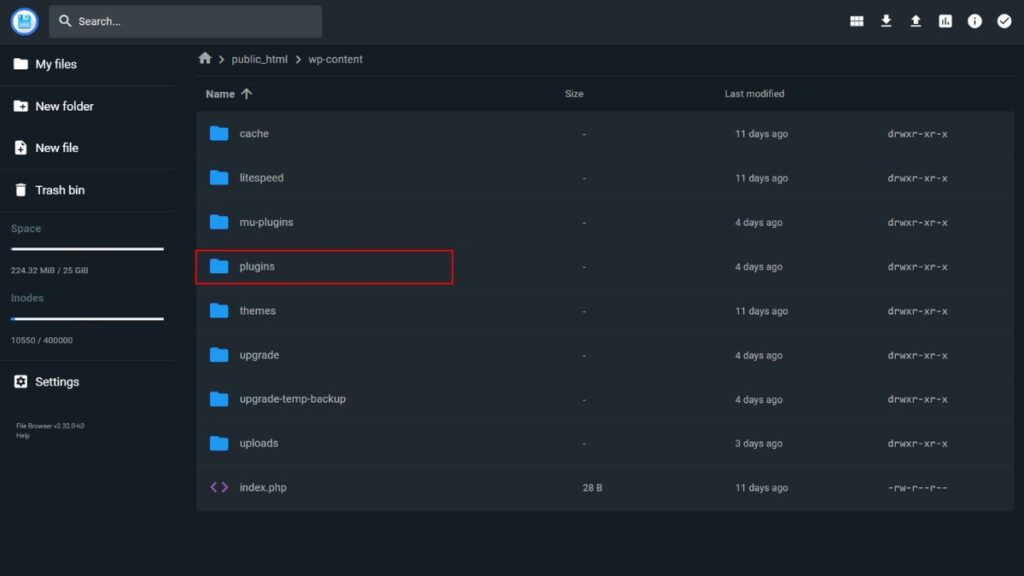
- Open your hosting file manager or FTP
- Navigate to
wp-content/plugins - Rename the plugins folder to
plugins-disabled - Reload the site
Renaming the folder safely deactivates plugins; it does not delete plugin settings or data.
If the site loads:
- Rename the folder back to
plugins - Log in to WordPress
- Disable plugins one by one to identify the cause
This action is safe and reversible.
Step 2: Check for Update or Maintenance Failures
If the error occurred during an update, WordPress may be stuck in a partially completed process.
This can cause:
- Maintenance mode not clearing
- Incomplete updates
- Execution failures
When an update fails mid-process, the site may remain stuck in maintenance mode instead of showing the critical error message.
- WordPress Stuck in Maintenance Mode After Update – How to Fix
- Advanced Fixes for WordPress Stuck in Maintenance Mode – Safe Steps
These are different symptoms of the same underlying execution failure.
🔁 Related Symptoms: Login Loops and SSL Issues
Sometimes this error does not appear directly.
Instead, the failure presents as:
- Login accepted but redirected back to login
- Endless redirect loops
- Admin access failing after login
In some cases, the site loads but repeatedly redirects after login instead of displaying a visible error.
These symptoms are often caused by:
- Plugin conflicts
- Incorrect site URLs
- SSL or CDN misconfiguration
This commonly happens when Cloudflare Flexible SSL is enabled while WordPress is configured for HTTPS.
These are alternate outcomes of the same failed request, not separate problems.
🚫 What NOT to Do (Important)
- Do not reinstall WordPress immediately
- Do not delete plugins or themes blindly
- Do not edit
wp-config.phpwithout a clear, specific reason - Do not change file permissions randomly
- Do not restore a database backup before identifying the cause
- Do not follow fixes meant for different error messages
If a step cannot be easily reversed, pause before doing it.
📄 Checking Error Logs (Optional)
If you want the exact technical cause:
- Open your hosting error logs
- Look for entries containing:
- Fatal error
- Uncaught Error
- Plugin or theme file paths
If you are not comfortable reading logs, skip this step.
The fixes above resolve most cases without logs.
♻️ When You Should Restore a Backup
Restore a backup only when:
- The site failed after a major update
- Multiple fixes did not resolve the issue
- The site is business-critical and downtime is unacceptable
Restoring a backup is a recovery action, not a mistake.
🛡️ How to Reduce the Risk in the Future
- Update plugins one at a time
- Avoid modified or pirated plugins and themes
- Keep regular backups
- Test updates during low-traffic periods
- Avoid changing PHP versions without compatibility checks
- Use staging environments when available
✅ Final Checklist
- Plugins tested or disabled
- Theme tested
- Update failures ruled out
- SSL or CDN configuration checked
- Backup available
❓Frequently Asked Questions
Why does WordPress show a “critical error” instead of the real error message?
WordPress hides detailed error messages by default to prevent sensitive information from being exposed publicly. When a fatal error occurs, WordPress stops execution and displays a generic message instead of showing technical details on the screen.
Can this error fix itself on its own?
In some cases, the site may start loading again if the triggering condition no longer occurs. However, the error indicates that a fatal failure was detected, and the underlying cause usually still exists and should be investigated.
Does this error mean my website data is lost?
No. This error means WordPress stopped processing a request. It does not delete posts, pages, or database content. Data loss only occurs if files or the database are manually removed.
Why can I still see the site even though the error occurred?
Some fatal errors occur only during specific actions, such as login, plugin execution, or background tasks. In those cases, WordPress may send an error email even though the public site still loads.
Should I reinstall WordPress to fix this error?
Reinstalling WordPress is rarely necessary and should not be the first response. Most critical errors are caused by plugins, themes, updates, or configuration changes and can usually be resolved without reinstalling WordPress.
What should I do if none of the fixes work?
If disabling plugins, checking updates, and verifying configuration do not restore access, restoring a recent backup is the safest next step. If no backup is available, reviewing error logs can help identify the cause.
🧾 Summary
The message “There has been a critical error on your website” means WordPress stopped execution to prevent further damage.
The error is usually triggered by a recent change and can often be resolved by identifying and reversing that change using safe, reversible steps.
Many WordPress problems—maintenance mode failures, login redirect loops, and SSL conflicts—are simply different symptoms of the same underlying execution failure.
Written by TechHelpTips Editorial Team
We publish clear, step-by-step guides for common website and WordPress issues, focusing on safe, non-destructive fixes that help restore normal site functionality without unnecessary changes.