
Fix “Error Establishing a Database Connection” in WordPress
⚠️ Exact error
“Error establishing a database connection”
🖥️ Platform
WordPress (self-hosted)
🧭 Introduction
This article explains the “error establishing a database connection” in WordPress and the safe steps used to resolve it.
This message appears when WordPress loads but cannot connect to the database that stores all site content and settings. Because every page request depends on this connection, both the website and the admin area stop working.
📌 Quick cause summary
WordPress shows this error when it cannot authenticate with the database or when the database server is unavailable.
The visual overview below shows the safe troubleshooting order at a glance.
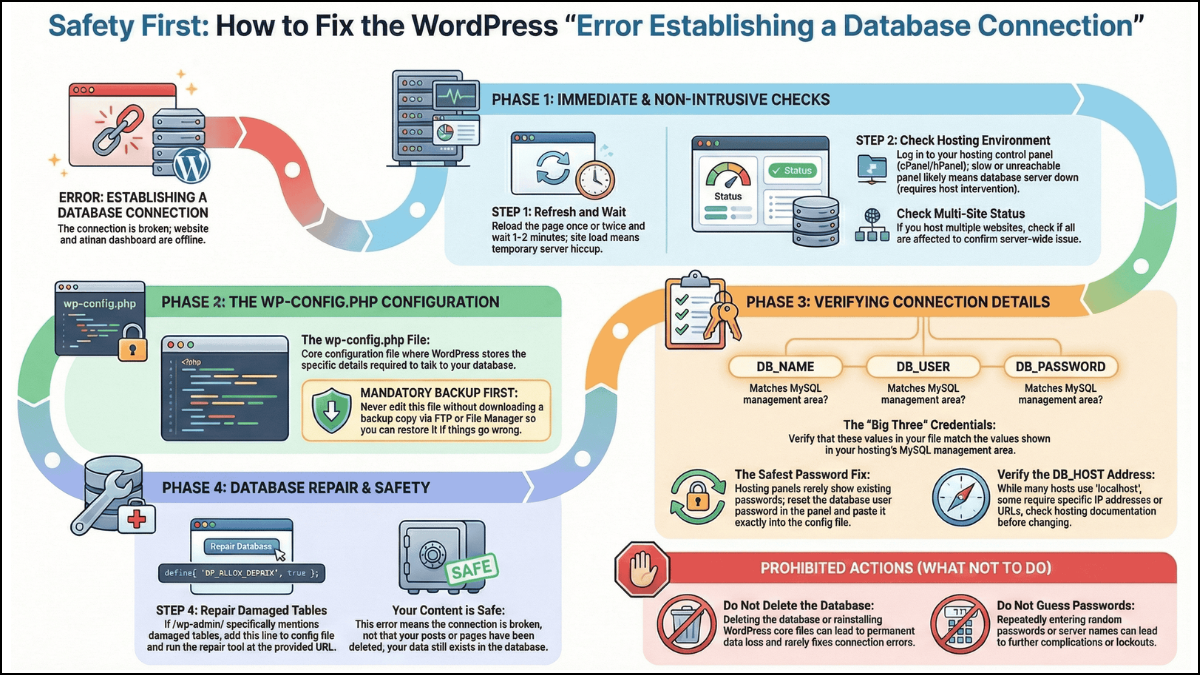
Start at the top and stop as soon as the site loads again. Later steps are only needed if earlier checks fail.
❓ Why this happens
When a page loads, WordPress:
- 📄 Reads database connection details from a configuration file
- 🔌 Tries to reach the database server
- 📊 Requests posts, pages, and settings
The error appears if any part of this chain fails. The most common causes are:
- ❌ Incorrect database name, username, password, or host
- 🗄️ Corrupted database tables
- 🚫 A database server that is offline or overloaded
WordPress does not indicate which one failed, so checks must be done carefully and in order.
📚 Table of Contents
Step-by-step safe fixes
(Start at Step 1 and stop as soon as the site loads again.)
✅ Step 1: Check for a temporary server issue
Before changing anything:
- 🔄 Reload the page once or twice
- ⏱️ Wait 1–2 minutes and try again
If the site loads, the issue was temporary.
Risk: None
🧩 Step 2: Check whether the hosting environment is working
- 🔐 Log in to your hosting control panel (e.g.- h-panel or c-panel)
- 🐌 If the panel itself is slow or unreachable, the database server may be down
- 🌐 If you host multiple sites, check whether others are also affected
If the control panel is unavailable, no WordPress-side fix will work until the server recovers.
Risk: None
📄 Step 3: Understand what wp-config.php does
WordPress stores database connection details in a file named wp-config.php.
If even one character in this file is incorrect, WordPress cannot connect to the database.
Editing this file is safe only if a backup is made first.
Before making any change, download a copy of the file so it can be restored if needed.
The purpose and structure of wp-config.php are explained in the official
WordPress documentation.
🔑 Step 4: Check the database login details (name, user, password)
This step checks whether WordPress is allowed to log in to the database.
WordPress uses four values to connect to the database.
If any one of them is wrong, the connection fails.
What you are checking here:
You are checking identity and password, similar to logging in to an email account.
Before you start:
- 🖥️ You must have access to your hosting control panel
- 💾 You must make a backup of the file before editing
What to do (carefully):
- 📁 Open your hosting File Manager or connect using FTP
- 📂 Open your site’s main folder (commonly called
public_html) - 📄 Find the file named
wp-config.php - ⬇️ Download a copy of this file to your computer (this is your backup)
define( 'DB_NAME', 'database_name_here' );
define( 'DB_USER', 'username_here' );
define( 'DB_PASSWORD', 'password_here' );
define( 'DB_HOST', 'localhost' );
For now, focus only on these three lines:
- DB_NAME
- DB_USER
- DB_PASSWORD
How to verify them:
- Open MySQL Databases (or Database Management) in your hosting panel
- Compare what you see there with the values in
wp-config.php
What must match exactly:
- Database name → must be the same
- Database username → must be the same
About the password (important):
Hosting panels usually do not show the existing database password.
Because of this, the safest method is:
- 🔁 Reset the database user password inside the hosting panel
- 📋 Copy the new password
- 📌 Paste it exactly into DB_PASSWORD in
wp-config.php
⚠️ Do not guess passwords.
⚠️ Do not reuse an old password unless you are certain it is correct.
💾 Save the file and reload your website.
If the site loads, stop here.
Risk level: Low (safe if a backup was made)
Short video suggestion (30–45 seconds):
Open file manager → back up wp-config.php → edit one value → save → reload site
🧭 Step 5: Check the database server address (DB_HOST)
Only do this step if Step 4 did not fix the issue.
This step checks where the database is located, not who can access it.
Why this matters:
Many guides assume the database server is always called localhost.
This is not always true.
- The database runs on a separate server
localhostis incorrect even when name, user, and password are correct
In this case, WordPress fails silently and shows the same error.
What NOT to do:
- ❌ Do not guess this value
- ❌ Do not try random server names
- ❌ Do not change it unless your host tells you to
How to check the correct value:
- MySQL settings
- Database details
- Hosting documentation
Examples your host might show: localhost, 127.0.0.1, mysql.example.com
define( 'DB_HOST', 'localhost' );
define( 'DB_HOST', 'mysql.example.com' );
💾 Save the file and reload your website.
If the site loads, stop here.
Important warning:
- If your host does not clearly mention a different database host, leave this unchanged
- Changing this incorrectly will prevent WordPress from connecting
Risk level: Low (single-line change, fully reversible)
🛠️ Step 6: Repair the database (only if WordPress prompts it)
If visiting /wp-admin/ shows a message about unavailable or damaged tables:
- Open
wp-config.php(after backing it up) - Add this line just above the “stop editing” comment:
define( 'WP_ALLOW_REPAIR', true );
Visit:/wp-admin/maint/repair.php
Click Repair Database
When finished, remove the line immediately.
⚠️ Warning:
Leaving repair mode enabled allows anyone to access the repair tool.
🚫 What NOT to do
- Do not delete the database
- Do not reinstall WordPress core files
- Do not restore old backups without identifying the cause
- Do not repeatedly try random passwords
These actions can permanently remove site data.
⛔ If the issue persists
If:
- Database credentials are correct
- Repair did not resolve the issue
- Hosting access is available
Then the database server may be offline, overloaded, or blocking connections.
Resolution requires hosting-level intervention.
If the database connection error appears after a site migration, see related guide:- Error establishing a database connection after migration (Article Coming Soon)
📄 Factual summary
This article focuses specifically on the error establishing a database connection in WordPress and the safe steps used to diagnose and resolve it.
This error means WordPress cannot authenticate with its database. It is most often caused by incorrect connection details or a temporary database server failure. Safe troubleshooting starts with non-destructive checks and proceeds carefully to configuration verification and repair only when indicated.
Related guides
- WordPress Stuck in Maintenance Mode After Update – How to Fix
- There Has Been a Critical Error on Your Website in WordPress – What It Means and How to Fix It
- WordPress Login Redirect Loop After Successful Login (wp-admin Redirects Back)
❓ FAQ
Will this error delete my posts or pages?
No. The content still exists in the database. The error means WordPress cannot access it, not that it has been erased.
Does this mean my site was hacked?
Not necessarily. This error is commonly caused by server outages, credential mismatches, or database corruption.
Can plugins or themes cause this error?
Indirectly, yes. A crash or failed update can corrupt database tables, but plugins and themes are not accessed until after the database connection succeeds.
Written by TechHelpTips Editorial Team
We publish clear, step-by-step guides for common website and WordPress issues, focusing on safe, non-destructive fixes that help restore normal site functionality without unnecessary changes.