
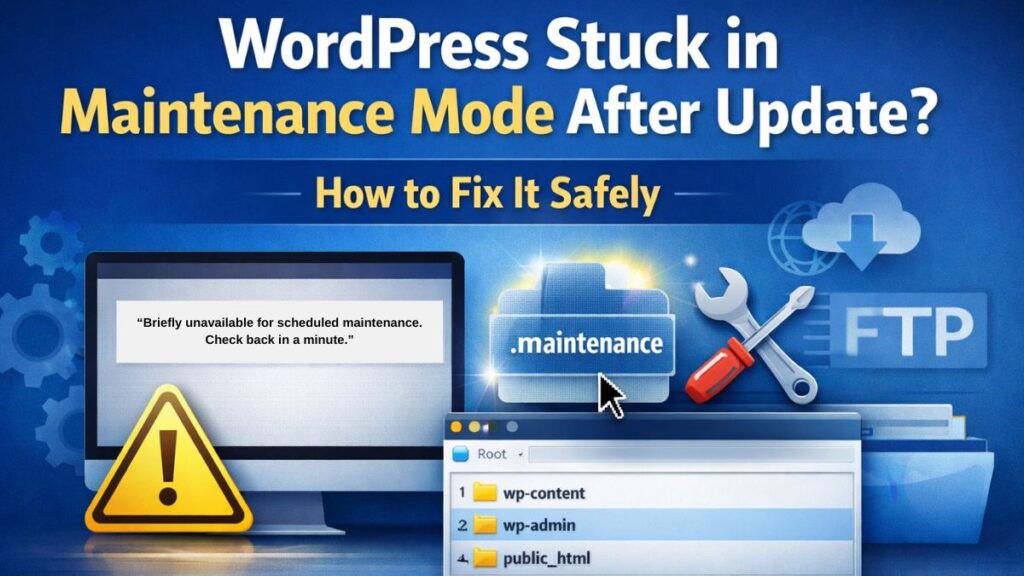
WordPress Stuck in Maintenance Mode After Update? How to Fix It Safely
Platform
WordPress (self-hosted)
Short Explanation
WordPress enters maintenance mode during updates.
The problem occurs when the update process stops before completion, leaving a temporary system file in place.
In most cases, deleting the temporary file below restores the site immediately:
.maintenanceAs long as that file exists, WordPress continues showing the maintenance message.
Table of Contents
- What WordPress Maintenance Mode Means
- Why Maintenance Mode Gets Stuck
- Quick Check Before Fixing Anything
- How to Fix WordPress Stuck in Maintenance Mode
- If the Site Still Does Not Load
- What Not to Do
- How to Prevent This Issue
- Frequently Asked Questions
- Summary
What WordPress Maintenance Mode Means
When WordPress updates a plugin, theme, or core files, it creates a temporary file named:
.maintenanceThis file tells visitors that changes are in progress and prevents incomplete files from loading.
Once the update finishes correctly, WordPress deletes this file automatically and the site loads normally.
Why Maintenance Mode Gets Stuck
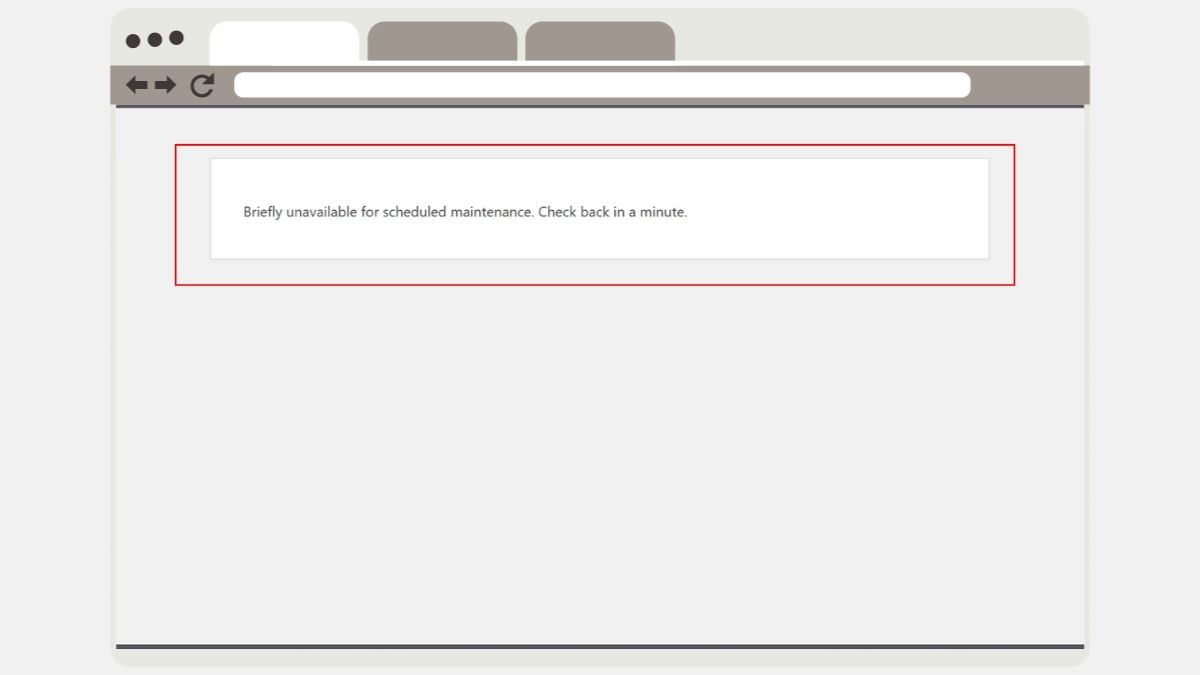
Maintenance mode remains active when the update process does not finish.
- The update process is interrupted
- The server stops responding during the update
- A plugin or theme update fails
- The browser window closes during the update
- Server resources are insufficient
When any of these occur, WordPress does not remove the temporary .maintenance file, causing the site to remain in maintenance mode. This behavior is part of WordPress’s update system, as documented in the official WordPress documentation.
Quick Check Before Fixing Anything
| What You See | Meaning |
|---|---|
| Frontend shows maintenance message | Maintenance file is active |
| /wp-admin loads | Core files are intact |
| Issue appeared after an update | Update did not complete |
| Site worked before update | Not a structural failure |
If these match your situation, the steps below apply.
How to Fix WordPress Stuck in Maintenance Mode
Follow the steps in order. Stop once the site loads normally.
Step 1 — Access Your Website Files
You need access to your website’s file system. This can be done using either your hosting control panel or an FTP client.
Option A — Using Your Hosting Control Panel (Recommended)
If your hosting provider offers a file manager (for example, Hostinger, Bluehost, SiteGround, etc.), follow these steps:
- Log in to your hosting account.
- Open the hosting dashboard.
- Go to Websites or My Sites.
- Select your website from the list.
- Click Tools or Manage.
- Open File Manager.
- Click Access Files or Open File Manager.
You will now see your website’s main directory.
Option B — Using an FTP Client
If you use an FTP client (such as FileZilla):
- Open your FTP application.
- Enter your FTP host, username, password, and port.
- Connect to the server.
- Navigate to your website’s root directory.
Locate the Root Folder
Your website’s root folder is usually named one of the following:
public_html
www
yourdomain.com
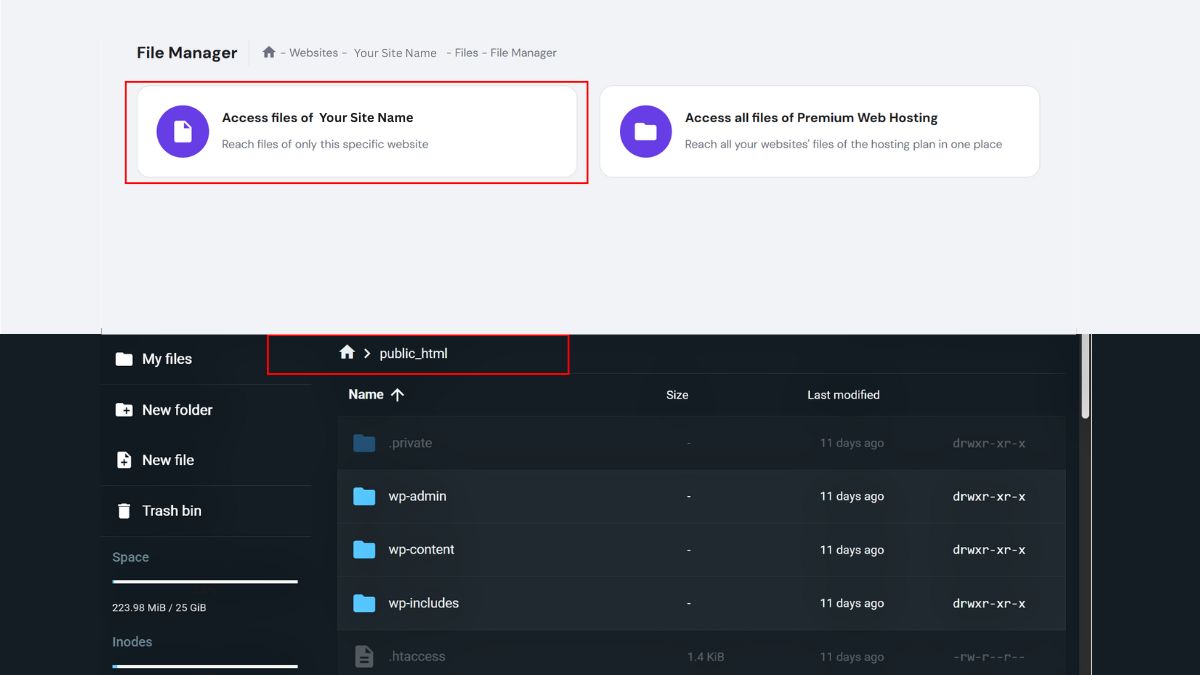
Screenshot example: Root directory view inside a hosting file manager (interface may differ by provider).
Step 2 — Delete the .maintenance File
Inside the root directory, locate:
.maintenanceIf it is not visible, enable Show Hidden Files.
Delete the .maintenance file.
This action is safe and does not remove content or settings.
Reload the website after deletion.
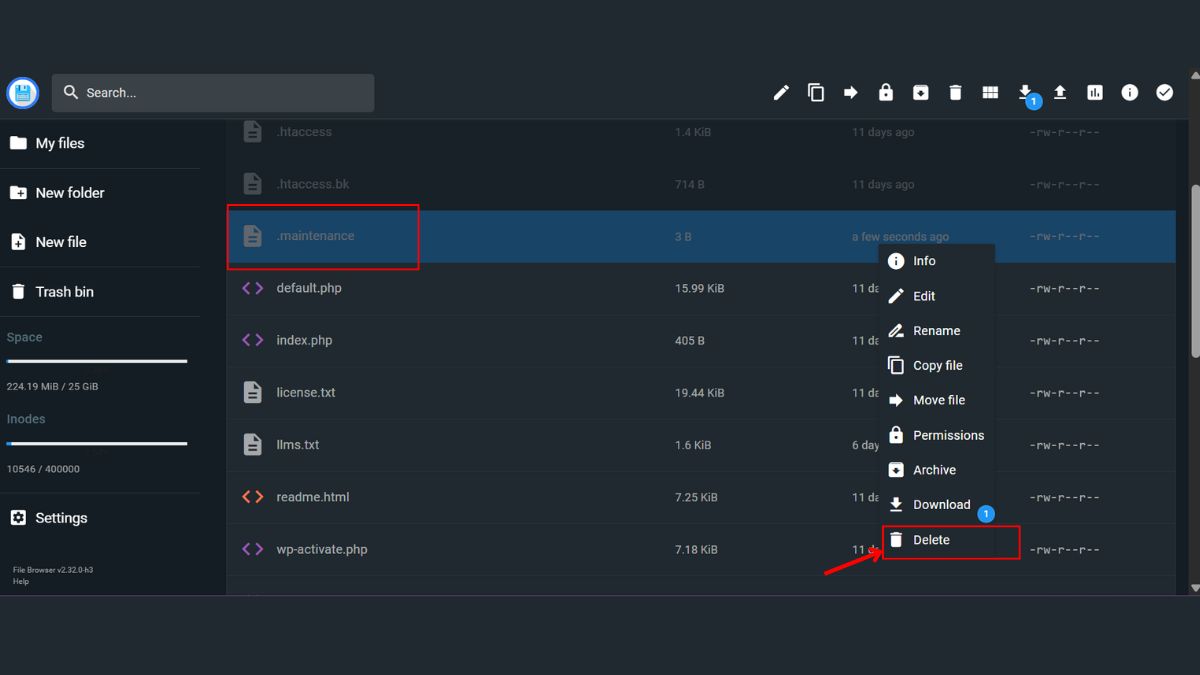
Screenshot example: Root directory view inside a hosting file manager (interface may differ by provider).
Step 3 — Clear Cached Data
If the maintenance message still appears:
- Clear your browser cache
- Clear cache from your hosting control panel
- Clear cache from any caching plugin (if accessible)
After clearing all caches, reload the website.
This ensures the browser and server are loading the latest version of the site files rather than an older stored copy.
Cache clearing methods vary depending on hosting setup and caching tools in use. When needed, refer to platform-specific instructions for clearing browser, server, or plugin cache.
Step 4 — Check for a Failed Plugin or Theme Update
If the site does not load after removing the .maintenance file, a plugin or theme update has failed.
Check for a Plugin-Related Issue
- Open the
wp-contentfolder. - Locate the folder named
plugins. - Rename the folder to
plugins-old. - Reload the website.
If the site loads after this change, a plugin caused the issue.
To identify the exact plugin:
- Rename
plugins-oldback toplugins. - Open the
pluginsfolder. - Rename one plugin folder at a time.
- Reload the site after each change.
The plugin that causes the site to stop loading is the source of the issue.
Check for a Theme-Related Issue
If the site still does not load after disabling all plugins, the active theme is causing the issue.
- Rename the
themesfolder tothemes-old. - Reload the website.
When the site loads after this step, the active theme is the source of the issue.
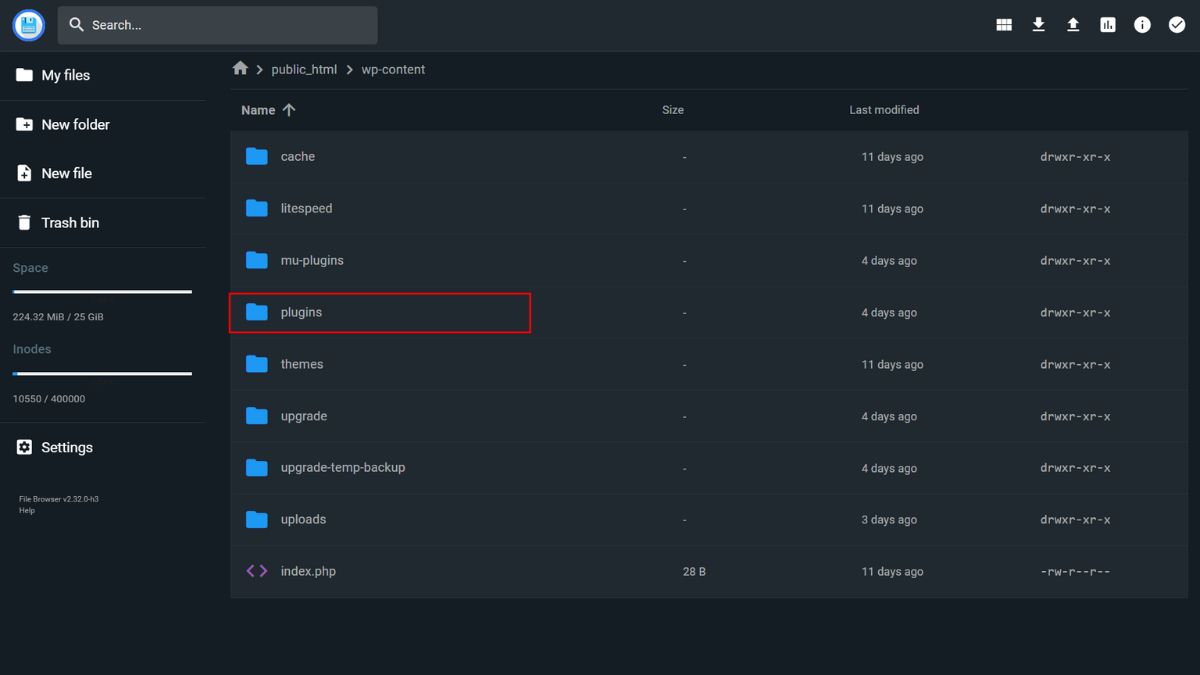
Screenshot example: Root directory view inside a hosting file manager (interface may differ by provider).
If the Site Still Does Not Load
This usually indicates:
- Server resource limitations
- Repeated update failures
- Hosting-level restrictions
Further resolution requires targeted troubleshooting based on how the server, hosting environment, or update system is configured.
Related guides:
- Advanced fixes when WordPress stays in maintenance mode
- Hosting-specific solutions for persistent maintenance issues
What Not to Do
- Do not delete random WordPress core files
- Do not rerun updates repeatedly without fixing the cause
- Do not restore backups before removing the maintenance file
- Do not edit database tables without a recovery plan
How to Prevent This Issue
- Update plugins and themes one at a time
- Avoid updates during peak traffic hours
- Ensure sufficient server resources
- Keep recent backups available
- Do not close the browser during updates
Basic prevention reduces the chance of this issue, but long-term stability depends on monitoring update behavior and system limits.
Preventive strategies and monitoring practices are covered in a separate guide focused on long-term WordPress maintenance.
Frequently Asked Questions
Does deleting the .maintenance file delete my website?
No. It only controls the maintenance message and does not affect site data.
Why did this happen if I didn’t interrupt the update?
The update can stop if the server reaches execution or memory limits.
Is it safe to use the site after fixing this?
Yes. Once the maintenance file is removed and the site loads normally, WordPress functions as expected.
Does this affect search engine visibility?
Short maintenance periods do not affect indexing. Extended downtime can.
Summary
- WordPress uses a temporary file during updates
- The site stays in maintenance mode when that file is not removed
- Deleting the
.maintenancefile restores access - Most cases resolve without data loss
- Proper update practices prevent recurrence
Written by TechHelpTips Editorial Team
We publish clear, step-by-step guides for common website and WordPress issues, focusing on safe, non-destructive fixes that help restore normal site functionality without unnecessary changes.