
Advanced Fixes for WordPress Stuck in Maintenance Mode – Safe Steps
Exact Problem
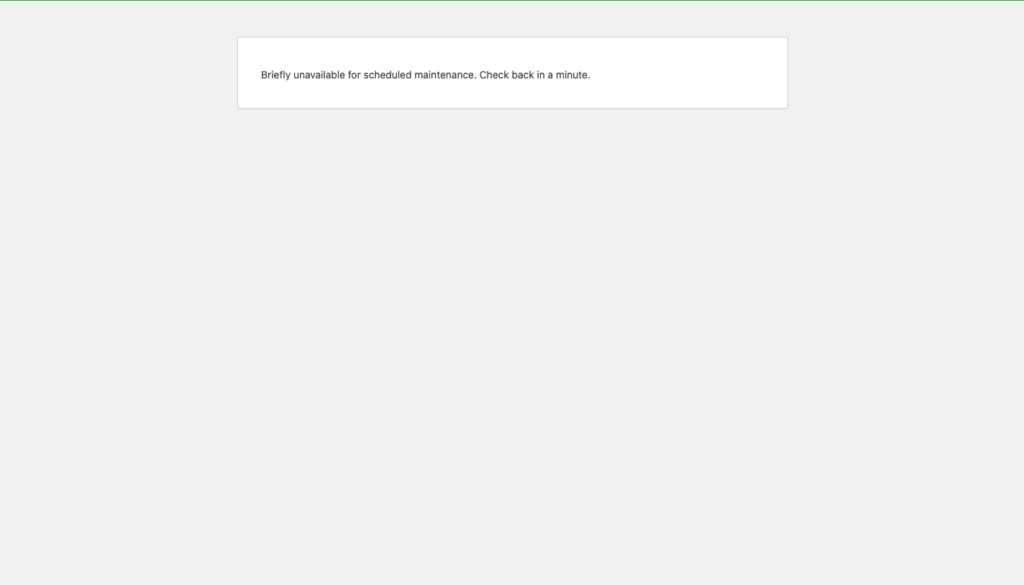
Your WordPress site continues to display the message:
“Briefly unavailable for scheduled maintenance. Check back in a minute.”
The message either:
- Returns after being removed, or
- Never disappears even though updates appear finished
This article applies only when the basic fix did not resolve the issue.
If you have not already removed the .maintenance file, start with:
WordPress Stuck in Maintenance Mode After Update? How to Fix It Safely
Platform
WordPress (self-hosted)
Transparency Note
These steps follow WordPress core update behavior.
WordPress creates the .maintenance file at the start of an update and removes it only after all update tasks and cleanup complete successfully.
When cleanup fails, maintenance mode can persist.
Short Explanation
When WordPress remains in maintenance mode after an update, it means the update did not complete cleanly.
In advanced cases, WordPress retries the failed update and re-enters maintenance mode to prevent incomplete files from loading.
The steps below focus on identifying and stopping the failure point so the site can exit maintenance mode normally.
Table of Contents
- Quick Cause Summary
- Why This Happens
- Quick Check Before Fixing Anything
- How to Fix WordPress Stuck in Maintenance Mode
- What Not to Do
- If the Issue Still Persists
- How to Prevent This Issue
- Frequently Asked Questions
- Summary
- Related Guides
Quick Cause Summary
WordPress stays in maintenance mode when:
- An update repeatedly fails
- A plugin or theme cannot complete its update
- WordPress cannot remove temporary update files
- Removing the message without fixing the cause triggers a loop
Why This Happens
WordPress enters maintenance mode at the start of an update and exits it only after cleanup finishes.
Maintenance mode remains active when:
- A plugin update fails every time WordPress loads
- A theme update interrupts execution
- File permissions prevent WordPress from deleting temporary files
- The update process stops before cleanup completes
When any of these occur, WordPress does not remove the temporary .maintenance file, causing the site to remain in maintenance mode. This behavior is part of WordPress’s update system, as documented in the official WordPress documentation.
Quick Check Before Fixing Anything
| What You See | What It Means |
|---|---|
| Maintenance message returns after deletion | Update loop is active |
| Site loads briefly, then locks again | Automatic retry is happening |
| Admin area does not load | Plugin or theme likely failing |
| Issue started immediately after update | Update-related failure |
If most of these match your situation, continue below.
How to Fix WordPress Stuck in Maintenance Mode
Follow the steps in order. Stop immediately once the site loads normally.
Step 1 – Confirm WordPress Is Not Actively Updating
Purpose
Avoid interrupting a legitimate update.
- Wait at least 10 minutes
- Open the site homepage in a new browser tab
- Try loading
/wp-admin
Expected
- Pages load normally → STOP
- Maintenance message remains → continue
Step 2 – Disable All Plugins Completely
Purpose
Check whether a plugin update is repeatedly failing and forcing maintenance mode.
Steps
- Navigate to your website’s root directory.
(This folder is commonly namedpublic_html, but it may also bewww,htdocs, or your domain name, depending on your host.) - Navigate to:
/public_html/wp-content/plugins/ - Rename the folder:
plugins → plugins-disabled - Go to:
/public_html/ - Delete the file:
.maintenance - Reload the website immediately.
Expected
- Site loads → plugin issue confirmed → continue to Step 3
- Maintenance message remains → continue to Step 4
Step 3 – Identify the Plugin Causing the Loop
Only continue if the site loaded in Step 2.
Steps
- Rename
plugins-disabledback toplugins. - Open:
/public_html/wp-content/plugins/ - Rename one plugin folder at a time:
plugin-name → plugin-name-off - Reload the site after each rename.
Expected
- Site remains stable → continue testing
- Site breaks again → last renamed plugin is the cause → STOP and remove the plugin or update it properly.
When you rename the folder back to plugins, the maintenance error may reappear immediately. This is normal. Proceed to rename individual plugin folders one by one until the site stays online.
- If WordPress loads normally → that plugin is safe
- If WordPress re-enters maintenance mode → the last plugin you touched broke execution
[SCREENSHOT PLACEHOLDER – single plugin renamed | alt: Disabling one WordPress plugin via folder rename]
Step 4 – Disable the Active Theme Safely
Purpose
Determine whether a theme update is blocking normal loading.
Steps
- Navigate to:
/public_html/wp-content/themes/ - Identify the active theme (matches your site design or was recently modified).
- Rename it by adding
-off.
Exampleastra → astra-off
Next
- Delete
.maintenance. - Reload the site.
Expected
- Site loads → theme update caused the issue → STOP
- Maintenance message remains → continue
Step 5 – Check Whether WordPress Can Create and Remove Files
Purpose
WordPress must be able to save and delete files to exit maintenance mode.
Steps
- Right-click a folder such as:
/public_html/wp-content/ - Open Permissions.
Correct values
- Folders:
755 - Files:
644
Expected
- Permissions correct → continue
- Permissions incorrect → fix or reset
If unsure, use your host’s Reset Permissions option or ask support to reset WordPress file permissions.
After fixing
- Delete
.maintenance. - Reload the site.
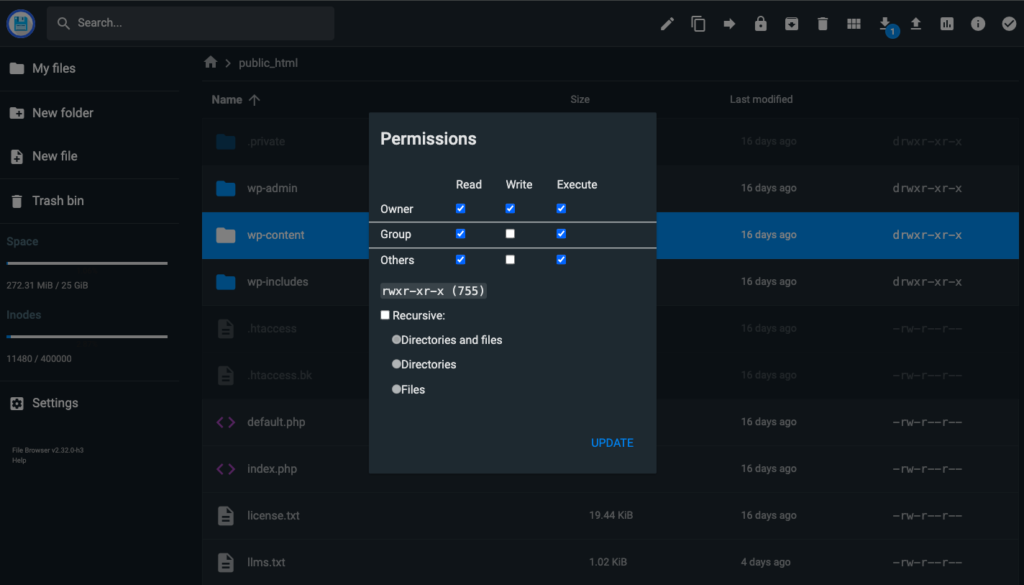
Screenshot example: Root directory view inside a hosting file manager (interface may differ by provider).
What Not to Do
- Do not repeatedly delete
.maintenancewithout fixing the cause - Do not run bulk updates again
- Do not edit database tables manually
- Do not reinstall WordPress prematurely
If the Issue Still Persists
If the site still does not load after completing all steps above, the issue is likely caused by hosting-level limits or locked update states that cannot be resolved safely from the file manager alone.
Continue with:
Hosting-Specific Fixes for WordPress Stuck in Maintenance Mode
If hosting-level fixes do not resolve the issue, controlled repair methods may be required:
WP-CLI & Database Repair for WordPress Stuck in Maintenance Mode
How to Prevent This Issue
- Run updates one at a time
- Avoid closing the browser during updates
- Keep unused plugins disabled
- Monitor the site immediately after updates
Frequently Asked Questions
What permissions should WordPress folders and files use?
Folders should use 755. Files should use 644.
Why does maintenance mode keep returning?
Because WordPress retries a failed update that never completes cleanup.
Is my site data damaged?
No. This issue involves incomplete updates, not content loss.
Can this happen without updating anything?
Yes. WordPress can enter maintenance mode during core updates or background update checks. If the update process is interrupted or cannot complete cleanup, maintenance mode can persist even when no plugin or theme update was manually started.
Summary
- WordPress creates
.maintenanceduring updates - Maintenance persists when cleanup fails
- Plugin or theme conflicts are the most common cause
- Correct permissions are required for cleanup
Related Guides
- Hosting-Specific Fixes for WordPress Stuck in Maintenance Mode
- WP-CLI & Database Repair for WordPress Stuck in Maintenance Mode
- How to Prevent WordPress from getting Stuck in Maintenance Mode
Written by TechHelpTips Editorial Team
We publish clear, step-by-step guides for common website and WordPress issues, focusing on safe, non-destructive fixes that help restore normal site functionality without unnecessary changes.