
Last verified: May 2026 | This Canva AI review is based on free plan testing.
How I tested this Canva AI review: Free Canva account, May 2026. I ran prompts across all five output types — Design, Image, Doc, Code, Video Clip — plus Dream Lab. For each, I checked output quality, whether text was editable, what downloaded cleanly, and where the free-plan limits actually kicked in. Screenshots taken throughout, including the garbled text examples and the AI usage warning.
Canva replaced Magic Studio with something simpler — one prompt bar, five output types, and a cleaner name. The interface works. The pitch is easy to believe. Worth knowing before you dive in: Canva AI 2.0 has been announced and is rolling out, with higher AI allowances and more advanced features sitting behind paid plans.
I ran a full testing session on the Canva AI free plan — designs, images, docs, video clips, and a complete Pinterest pin workflow. Some results genuinely surprised me. Others confirmed exactly what you’d expect from a free tier. Here’s the honest version, not the one that ends with a glowing affiliate button.
What Is Canva AI? (The Short Answer)
Canva AI — previously marketed as Magic Studio — is the AI layer built into all Canva plans, including free. It’s not a separate product. It lives on the Canva home screen as a single prompt bar. Describe what you want, pick an output type, and Canva builds it.
Five output types sit beneath that bar: Design, Image, Doc, Code, and Video clip.
The interface is conversational. Canva explains what it’s creating, suggests refinements, and lets you continue the chat to iterate. That’s more useful than a one-shot generator that leaves you starting over when the first result misses.
Canva AI 2.0 is in rollout — many free users still see the existing Canva AI experience, while paid plans get earlier access and higher AI allowances. Your interface may look slightly different depending on your account, location, and rollout status.
Canva AI FREE PRO
Free — Pro from $144/yr
AI design, image, doc, video, and code generation from a single prompt bar. Free plan includes Canva AI with 200 standard or 20 premium AI uses per month (at time of testing — limits may change).
- Multiple design variations per prompt — genuinely distinct styles in this test
- Conversational interface — refine without starting over
- Dream Lab generates real AI images (separate tool)
- Text editable inline — no separate editor needed
- Doc output is polished and structured
- In this free-plan test, designs contained garbled placeholder text — editing required before download
- Image tab returned stock photos in this test, not AI generation
- Free-plan premium AI uses ran out faster than expected in active testing
- Background remover and Magic Eraser are Pro-locked
- Video audio requires paid tier
Pricing shown at time of testing. Verify current plan costs and AI allowances at canva.com/pricing before purchase.
Design variations per prompt
Premium AI uses free/month
Output types (Design, Image, Doc, Code, Video)
Canva Pro per year
Stats reflect free-plan limits and pricing at time of testing. Check canva.com/pricing for current figures.
What Each Canva AI Feature Actually Does for Freelancers in Practice
Here’s what each output type actually does — not the marketing version:
- Design — generates social posts, flyers, and presentation slides from a text description. Four variations per prompt in this test. Each opens directly in Canva’s editor for customisation. Fast to generate, and meaningfully varied in style across test prompts.
- Image (in the main Canva AI bar) — in my test, returned stock photos with artistic rendering applied rather than original AI generation. For reliable original AI images, Dream Lab is the clearer route. Most users won’t find it without looking.
- Doc — generates structured written documents: gig descriptions, proposals, content outlines. One output, not multiple variations like Design produces.
- Code — generates basic HTML and CSS. Narrow use case for most freelancers and bloggers.
- Video clip — generates short clips from a prompt. In my free account, a short test clip was produced — though Canva’s public Video Generator page lists this feature for Pro, Teams, Enterprise, and Nonprofit users. Treat video as the least stable part of the free-plan experience.
In this free-plan test, all outputs were downloadable and editable. Text within designs was editable inline. Backgrounds are not — removing or swapping a background is a Pro feature.
Design Generation: What I Tested, What Came Out
Prompt: “Social media post for a freelance writer promoting blog writing services.”
Four designs at medium speed. The variety was the first real surprise — a dark typographic layout, a feminine editorial style, a botanical warm composition, and a bright professional format. Not four versions of the same idea. Actually distinct options you’d weigh against each other.
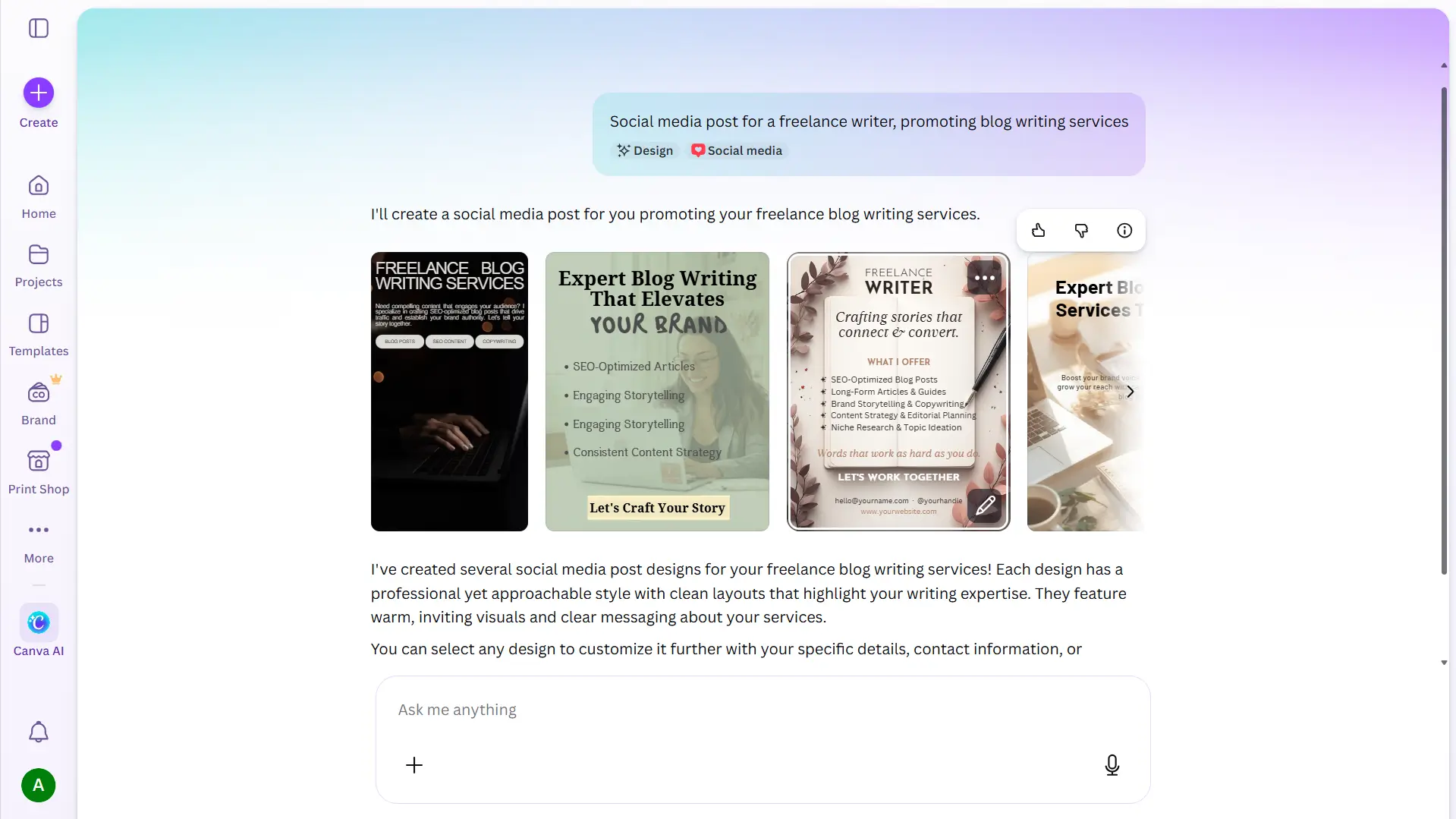
Here’s the part most reviews skip entirely: in this free-plan test, every design came back with garbled placeholder text.
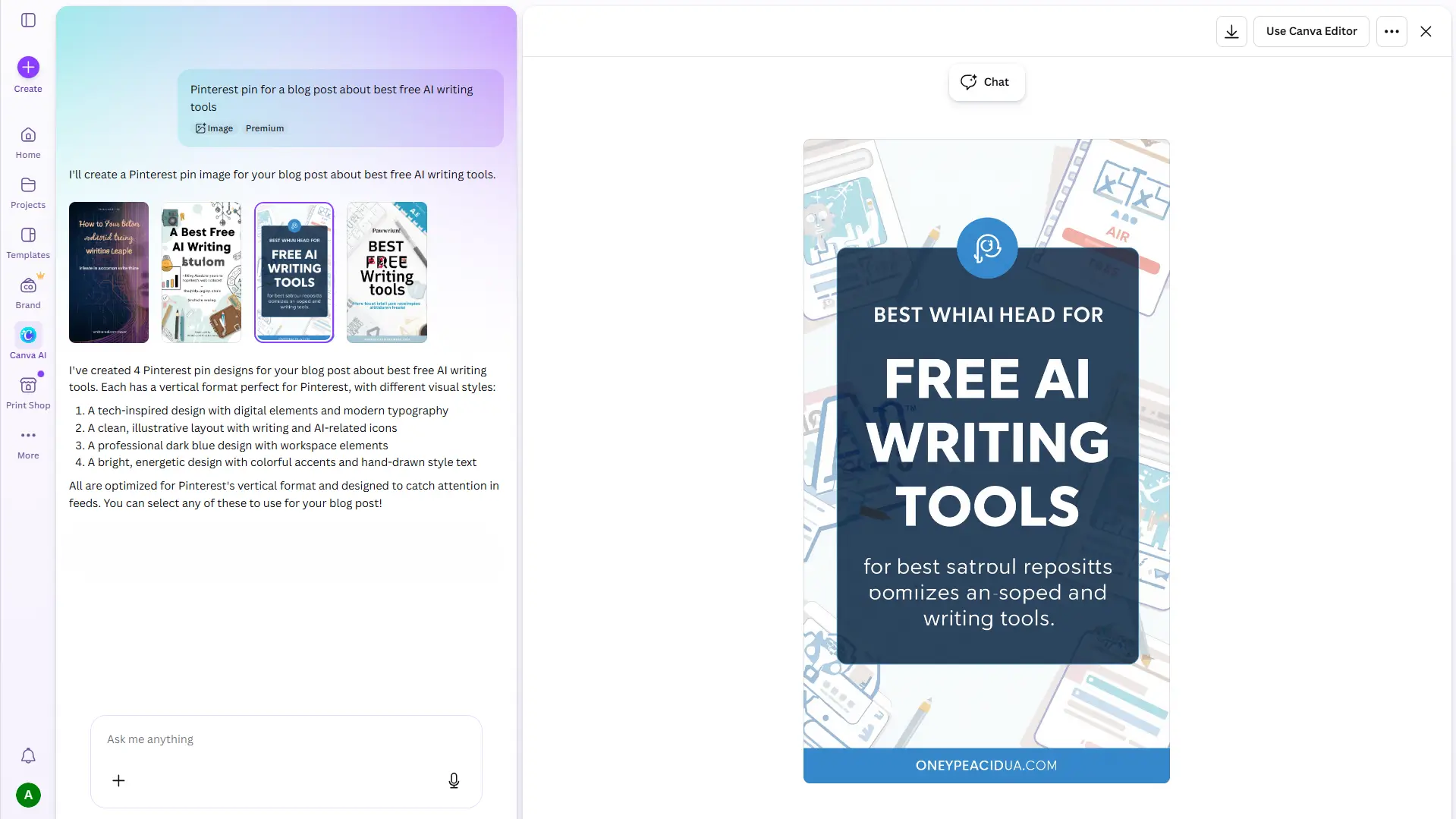
Not Lorem Ipsum. Something that looks like real copy in the thumbnail and reads as complete nonsense the moment you zoom in. One Pinterest pin headline came out as “BEST WHIAI HEAD FOR.” The body copy was worse. From a distance — polished. Up close — unusable.
This isn’t a minor detail. Every generation in my test required a text editing pass before it was usable. Canva makes that reasonably easy — text is editable inline and the full editor opens with one click. But the workflow is prompt → fix all text → download, not prompt → download. If you expected the latter, you’ll be caught off guard.
That said, once the text is fixed? The designs hold up. For social posts and blog graphics, the output quality sits well above what free usually means.
Tip: Before downloading, zoom into the design and replace every text element. In this test, Canva AI filled text placeholders automatically — but not with your copy.
Image Generation: Two Tools, One Important Distinction
In my test, the result from the Canva AI prompt bar was tagged “Stock Photo” — curated stock with artistic rendering applied, not original AI generation. That surprised me, because Canva does have a genuine AI image generator. It’s just not in the main prompt bar.
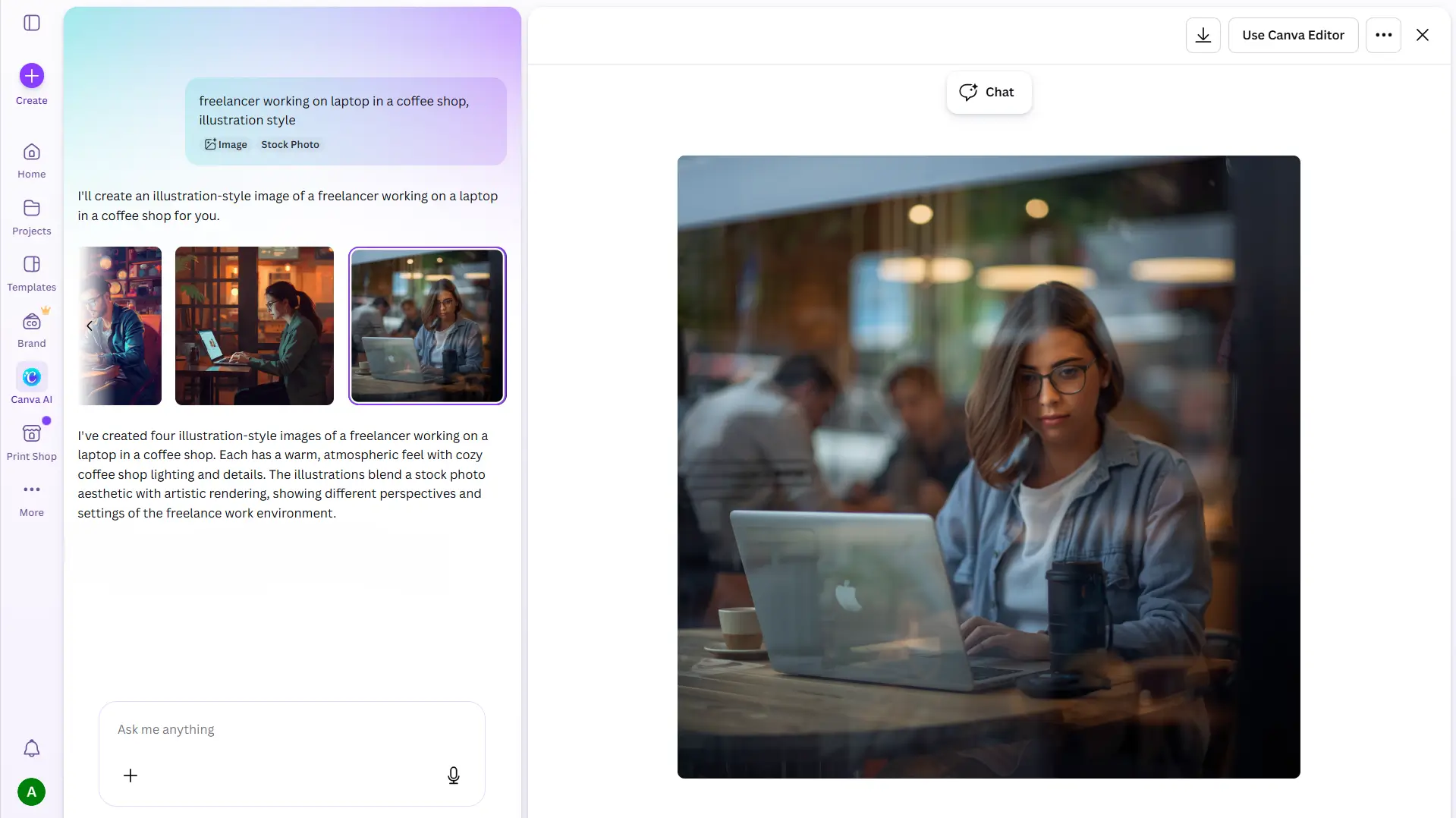
It’s in Dream Lab — accessible via More in the left sidebar.
Same prompt tested there: four distinct illustration-style images generated, all original, all downloadable. Freelancers in a coffee shop, illustrated. The quality is competitive with standalone AI image tools. Detailed, atmospheric, stylistically consistent across the four outputs.
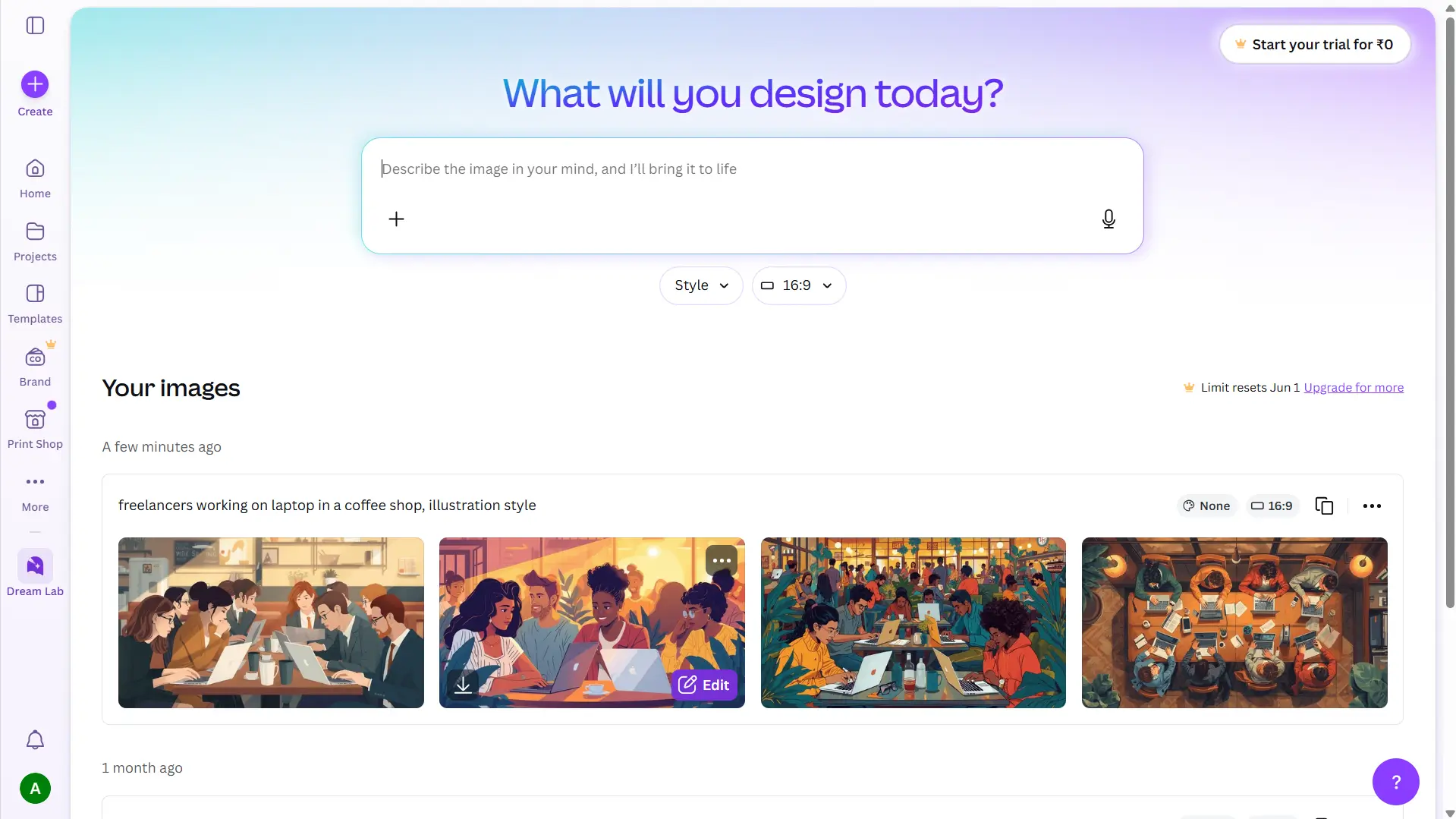
Dream Lab has its own monthly usage limit separate from the main Canva AI allowance — the interface showed a monthly reset date during testing, so there are two limits to track, not one.
The practical takeaway: if you want AI-generated images, use Dream Lab. The Image tab in the main Canva AI bar gives you stock photos with style filters. Most users will never realise the distinction exists — they’ll try the Image tab, get stock photos, and conclude Canva AI can’t generate original images. It can. It’s just filed elsewhere.
One more thing visible in the Dream Lab editor: BG Remover and Magic Eraser both show the paid crown — same restriction as the main Canva AI editor. The image quality is free. The editing power still sits behind Pro.
Doc and Video: Brief and Honest
Doc: Prompt — “Write a Fiverr gig description for a logo design service.”
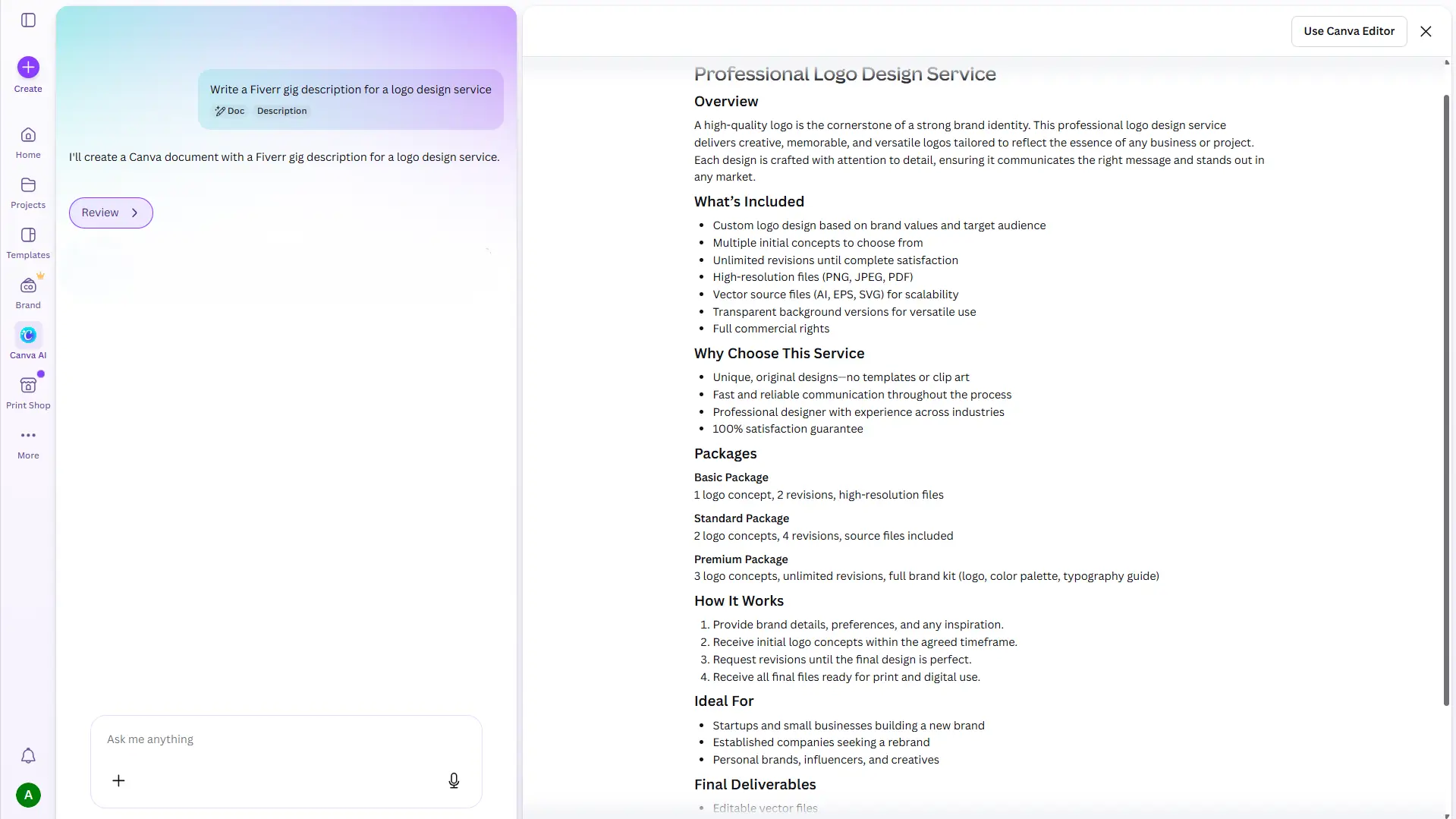
One document. Well-structured — Overview, What’s Included, Packages (Basic / Standard / Premium), How It Works, Final Deliverables. The quality landed closer to a polished first draft than a rough starting point. Unlike the Design output, there’s no choosing between four variations. You get one and iterate from there.
Video clip: Prompt — “Short promo video for a freelance social media manager.”
In my test account, Canva produced a short 16:9 clip — 5.7 seconds, no usable audio. That said, Canva’s public Video Generator page currently lists “Create a Video Clip” as a feature for Pro, Teams, Enterprise, and Nonprofit users. So video is the least predictable part of the free-plan experience: worth testing if it shows up in your account, but not something I’d build a free workflow around.
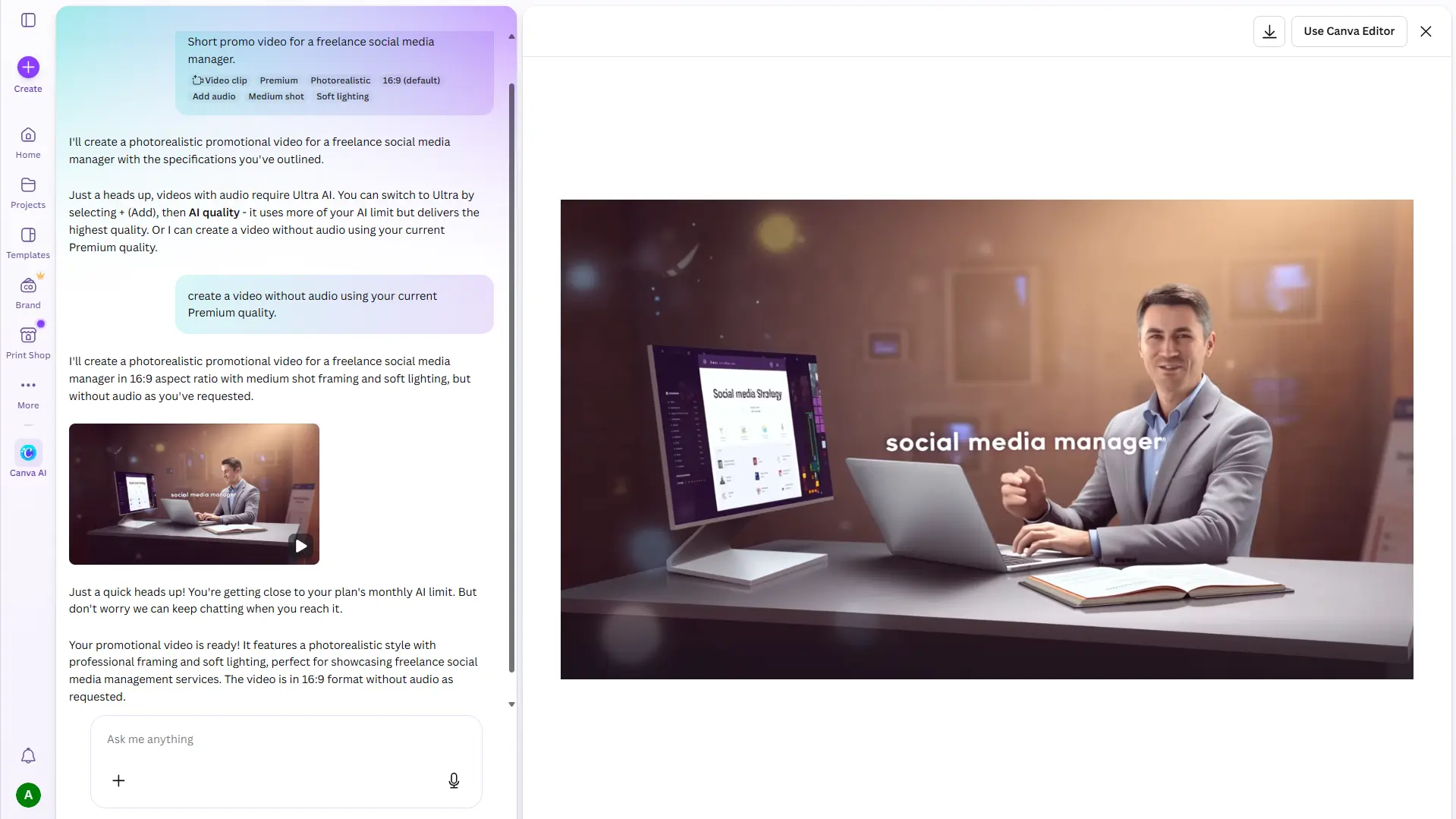
AI usage limit: After running a single session across all five output types, Canva warned that the monthly AI limit was approaching. In this free-plan test, design and video prompts burned through premium uses faster than standard ones. Anyone using Canva AI regularly — not occasionally — will hit this ceiling sooner than expected. Check your current free-plan allowance at canva.com/pricing as these limits update periodically.
Free vs Pro: What’s Actually Locked
| Plan | Price | AI Allowance | What freelancers lose on free |
|---|---|---|---|
| Free | $0/year | 200 standard / 20 premium uses/month | Background remover, video audio, premium templates |
| Pro | $144/year | 10x more AI uses | Full access — background remover, Magic Eraser, premium tools |
| Business | $250/year per person | 20x more AI uses | Team tools, 100 Brand Kits, 500GB storage |
| Enterprise | Custom | 20x more AI uses | Custom apps, enterprise security |
Pricing verified at time of testing from canva.com/pricing. Verify current figures before purchase — these update periodically. Prices exclude applicable tax.
Three gaps that actually affect freelancers day-to-day:
Background remover is Pro-locked — no built-in free Canva workaround inside the tested workflow. If removing backgrounds is a standard part of your process — product photos, thumbnails, profile images — the free plan creates friction every single session.
Magic Eraser is also Pro-locked. You can add elements to a design on the free plan. You cannot remove them.
AI usage limits. In this free-plan test, the monthly premium allowance wasn’t a theoretical ceiling — it’s a real one. A focused session across multiple output types consumed a significant portion before the session was done.
Canva AI 2.0: What’s Rolling Out and Who Gets What
Canva announced AI 2.0 — its biggest AI update so far. The headline additions: a more conversational creation workflow, layered editable outputs, memory, web research, connectors, scheduling, Sheets AI, and Canva Code 2.0. A significant jump from what’s currently on the free plan.
The access picture is nuanced. Canva says Canva AI is available to everyone — which is true. But higher AI usage allowances and the more advanced 2.0 capabilities sit behind paid plans. For light creative work and testing, the free plan is still genuinely useful. For a heavy freelance design workflow, it’s not the most stable foundation to build on.
One important note: I tested the free-plan experience available in my account at time of writing. Because the 2.0 rollout is ongoing, your interface may look slightly different depending on your account, location, and where you land in the rollout queue.
Who Should Use Canva AI Free
Bloggers who need graphics regularly. Pinterest pins, featured images, social posts — Canva AI free handled all of these in this test without requiring design skills or a design budget. For a moderate publishing schedule, the free-plan AI allowance is workable. Not generous, but workable.
Freelancers exploring design-adjacent services. If you’re considering adding social media graphics to your offering, the free plan gives you an honest feel for the workflow before committing money to a paid tool.
Writers who occasionally need a visual. Writing-first freelancers who need a one-off graphic every few weeks won’t touch the usage limit. For them, the output quality is more than enough.
Who Should NOT Use Canva AI
Freelance designers delivering client work. In this free-plan test, every design output required a text editing pass — there was no skipping it. If you’re billing by the project, the prompt-then-fix cycle may not save time versus starting from a template manually. And stock-photo-based image outputs from the main bar aren’t original work. A client paying for custom AI visuals isn’t getting that from the Image tab.
High-volume Fiverr sellers. The free-plan premium AI allowance lasts days for an active seller. At that volume the choice becomes either Canva Pro (around $144/year at time of testing — check current pricing) or constant interruptions every time the limit resets. The free plan isn’t built for production pace.
Anyone whose workflow includes background removal. Magic Eraser and background remover are both Pro-locked — no built-in free workaround exists inside the Canva workflow. If these are standard tools in your process, working around their absence costs more in frustration than the monthly Pro cost to unlock them.
Writers looking for an AI writing assistant. Canva AI Doc generates content but produces a single output with no iteration depth comparable to dedicated writing tools. If writing assistance is your primary need, purpose-built tools serve you better. Our Notion AI review for freelancers and best free AI writing tools guide cover those alternatives in detail.
Canva AI Review: The Final Verdict
Canva AI free is a capable tool for bloggers and content creators who need graphics without a design background. The output quality is better than free usually implies. The workflow — prompt, edit text, download — is simple enough to use without any tutorial.
Two limitations define where it stops working. First, in this free-plan test every design required a text editing pass — Canva AI filled text placeholders with garbled nonsense rather than actual copy across every output in the session. Second, the free plan’s monthly premium AI allowance is a genuine constraint verified during testing, not a theoretical ceiling.
For client-facing freelance work, the free plan falls short. Background removal is locked. Image outputs from the main bar are stock-based. Video without audio has narrow practical use.
For bloggers making regular graphics: Canva AI free earns its place in your toolkit. For client-facing design work or high-volume output: the Pro plan removes the constraints that actually matter. That’s not a hard sell — it’s just where the free tier stops being enough.
Try Canva AI Free — No Credit Card Needed
Start with the free plan and test all five output types. Upgrade to Pro if background removal or higher AI limits become a bottleneck.
For productivity tools that pair well alongside a Canva workflow, see our Otter.ai review and Notion AI review.
Frequently Asked Questions
Related Reads
- Notion AI Review for Freelancers
- Otter.ai Review for Freelancers
- Best Free AI Writing Tools for Non-Native English Freelancers
